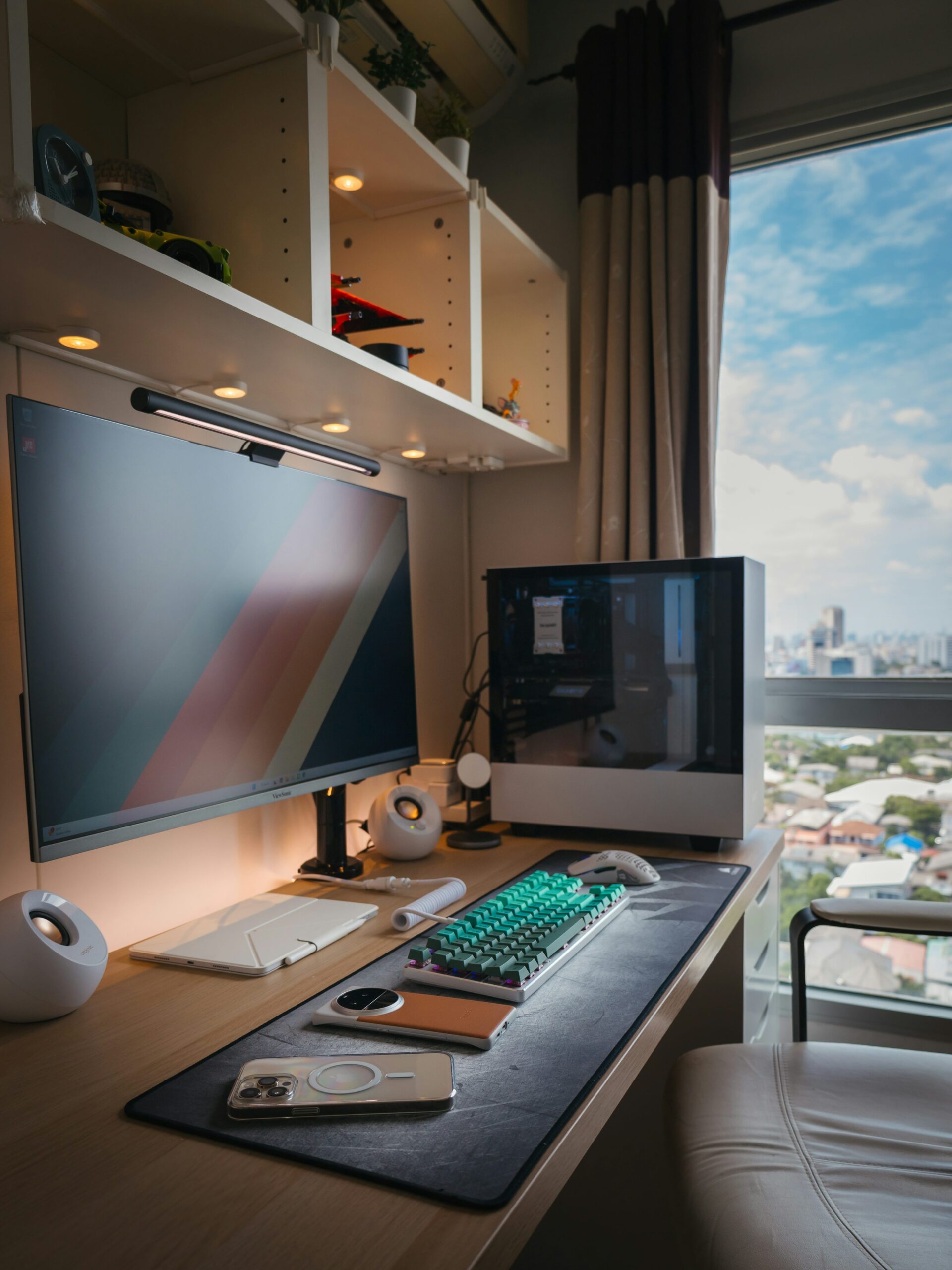
Variable refresh rate can make PC games feel smoother by allowing a compatible monitor to adjust its refresh rate as the graphics card produces frames. It helps reduce screen tearing and can make changes in frame rate less distracting, particularly when a game cannot hold a perfectly steady target such as 120 or 144 frames per second.
On a Windows 11 PC with an NVIDIA graphics card, the feature is usually configured through the monitor’s on-screen menu and NVIDIA Control Panel. Windows also has graphics settings related to variable refresh rate and windowed games. The exact options depend on your monitor, cable, GPU and driver, so it is worth checking each part of the setup rather than assuming that a G-SYNC or Adaptive-Sync label means everything is already enabled.
Table of Contents
Check whether your monitor supports VRR
Before changing settings, confirm that the monitor supports variable refresh rate. Look for NVIDIA G-SYNC, G-SYNC Compatible, AMD FreeSync or VESA Adaptive-Sync in the product specifications. Some displays support VRR without appearing on NVIDIA’s validated compatibility list, but results can vary by model and connection.
Also check which input supports the feature. A monitor may offer a different VRR range over DisplayPort and HDMI, and some models require a particular DisplayPort mode to be enabled in the on-screen menu. NVIDIA maintains a G-SYNC monitor list that can help you confirm whether a display has been validated.
Set the correct refresh rate in Windows 11
Windows may initially use a lower refresh rate than your monitor supports. To check it, open Settings, go to System > Display > Advanced display, and select the monitor you use for gaming. Under Choose a refresh rate, select the highest rate that is available at your preferred resolution.
Microsoft’s Windows refresh-rate guide explains that the available options depend on the display and its capabilities. If the highest rate is missing, check the cable, input, monitor menu and graphics driver. Some combinations of resolution and refresh rate are not supported over every port.
Enable Adaptive-Sync in the monitor menu
Use the physical buttons or joystick on the monitor to open its on-screen display. Depending on the manufacturer, the option may be called Adaptive-Sync, FreeSync, VRR or something similar. Enable it, then make sure the display is connected to the graphics card rather than a motherboard video output if you are using a desktop PC with a dedicated GPU.
Some monitors disable Adaptive-Sync when certain picture modes or motion-blur reduction features are active. If the G-SYNC option does not appear in NVIDIA Control Panel, check the monitor manual and temporarily disable incompatible display modes.
Enable G-SYNC in NVIDIA Control Panel
Right-click the Windows desktop and open NVIDIA Control Panel. In the navigation column, expand Display and select Set up G-SYNC. If the page is available, tick Enable G-SYNC, G-SYNC Compatible. You can choose full-screen mode only or windowed and full-screen mode, depending on how you play and whether your system behaves reliably with windowed applications.
Select the monitor you want to configure and enable the setting for that display model if the option is shown. Click Apply to save the change. NVIDIA’s official G-SYNC setup instructions cover the same steps and explain the available display-specific options.
If the G-SYNC page is missing, update the graphics driver and check that the monitor is connected to a supported output. NVIDIA notes that an unlisted Adaptive-Sync display may sometimes be enabled manually, but it is not guaranteed to work correctly.
Review Windows 11 graphics settings
Windows 11 includes additional graphics options that can complement a VRR display. Open Settings > System > Display > Graphics and review the default graphics settings. On supported systems, Windows may show a Variable refresh rate option and Optimizations for windowed games.
Microsoft says windowed-game optimizations can enable features such as VRR for compatible DirectX 10 and DirectX 11 games running in windowed or borderless modes. The option is not available on every PC, and it does not replace the monitor’s own Adaptive-Sync setting or NVIDIA’s G-SYNC configuration. If a game behaves worse after changing a setting, switch it back and test again.
Test whether G-SYNC is working
NVIDIA Control Panel can display an on-screen G-SYNC indicator while a game is running. Open the Control Panel menu and look for the option to show the G-SYNC indicator. Launch a game in the display mode you selected and check whether the indicator appears. You can also use a game with a built-in frame-rate counter to observe how the display responds when performance changes.
Do not expect the monitor’s refresh-rate number to remain fixed while VRR is active. The purpose of the feature is to let the display adjust within its supported range. If frame rates fall below that range, low-framerate compensation may help on supported combinations, but the exact behaviour depends on the monitor and GPU.
Troubleshoot common problems
- G-SYNC is missing: check the cable, monitor input, driver version and Adaptive-Sync setting in the monitor menu.
- The monitor is stuck at 60Hz: revisit Advanced display settings and check whether the selected resolution limits the available refresh rates.
- VRR works in full-screen but not windowed mode: change the G-SYNC mode or test Windows’ windowed-game optimizations.
- Flicker appears: test a different refresh-rate range or disable VRR temporarily to determine whether the display or game is responsible.
- Performance feels inconsistent: check frame-rate limits and in-game V-Sync settings rather than changing several driver options at once.
Conclusion
To enable G-SYNC, confirm that the monitor and connection support VRR, select the correct refresh rate in Windows, turn on Adaptive-Sync in the monitor menu and enable G-SYNC in NVIDIA Control Panel. Windows 11 offers additional options for supported games, but the display and driver configuration still matter most. Change one setting at a time and test it in the games you actually play.