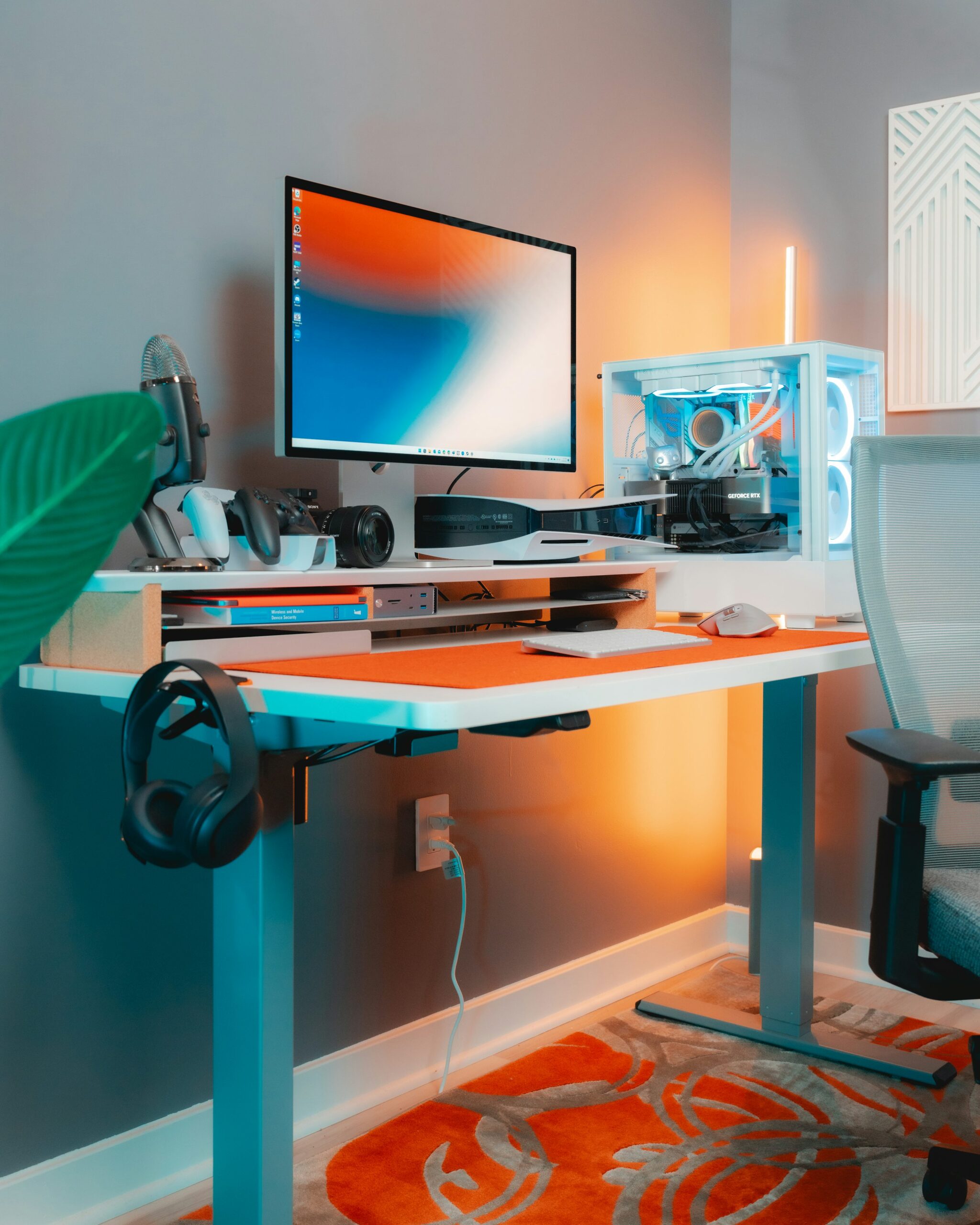
Choosing a gaming monitor in 2026 is no longer as simple as picking the highest refresh rate you can afford. Modern displays differ in panel technology, resolution, response behaviour, HDR performance, adaptive sync and connectivity. Two monitors with similar headline specifications can deliver very different experiences once you start playing fast competitive games, exploring dark cinematic scenes or connecting a console.
The right screen depends on what you play, how powerful your graphics card is and how far you sit from the display. A high-refresh 1080p monitor can make sense for competitive gaming, while a 4K OLED may be a better fit for single-player games and media. This guide breaks down the specifications that matter and explains where spending more is likely to make a visible difference.
Table of Contents
Choose resolution and screen size together
Resolution determines how many pixels the monitor can display, but it should be considered alongside screen size and viewing distance. Full HD (1920 × 1080) remains a practical option for smaller displays and competitive players who want to reach very high frame rates without placing excessive demands on the GPU. Quad HD (2560 × 1440) is a popular middle ground for 27-inch monitors, offering a sharper image without the same performance cost as 4K.
4K (3840 × 2160) provides the most detail among these common desktop resolutions, especially on larger screens. It can make games look sharper and gives more room for creative work, but rendering four times as many pixels as 1080p is demanding. Before buying a 4K high-refresh monitor, check whether your graphics card can deliver the frame rates you actually want in the games you play.
Screen size is personal, but 24 to 25 inches is still comfortable for many competitive setups, while 27 inches is a versatile size for QHD. Larger 32-inch and ultrawide monitors can be more immersive, though they take up more desk space and may require a deeper viewing distance.
Understand refresh rate and response time
Refresh rate, measured in hertz (Hz), is the number of times the display can update each second. A 144Hz screen can refresh up to 144 times per second, while a 240Hz model can refresh up to 240 times. Higher refresh rates can make motion look smoother and reduce the time between displayed frames, but the benefit depends on the game and the frame rate your PC can sustain.
For many players, 144Hz or 165Hz is already a substantial improvement over a basic 60Hz display. Moving to 240Hz can be useful for competitive shooters and other fast games, particularly if your system can produce frame rates high enough to take advantage of it. Extremely high refresh rates are less compelling if your GPU regularly runs far below the monitor’s maximum.
Response time describes how quickly pixels change from one colour or shade to another. It is not the same as input lag, and advertised response-time figures are often measured under ideal settings. Look for independent testing that checks motion clarity and overshoot rather than choosing a display based only on a claimed one-millisecond figure.
Compare IPS, VA and OLED panels
Panel technology has a major effect on contrast, viewing angles, motion and price. IPS displays are versatile and generally offer consistent colours and wide viewing angles. They are a sensible choice for mixed work and gaming, although conventional IPS panels usually cannot produce the deep blacks of OLED.
VA panels typically offer stronger native contrast than standard IPS, which can help dark scenes look richer. Their motion performance varies significantly by model, however, and some VA displays show dark-level smearing. It is worth checking real-world reviews if you play games with frequent movement through dark environments.
OLED and QD-OLED panels can switch individual pixels off, producing very deep blacks and excellent contrast. They are particularly impressive in dark games and HDR scenes, and their pixel response is extremely fast. Potential drawbacks include a higher purchase price, different brightness behaviour and the possibility of image retention or burn-in over long periods of displaying static elements. Modern monitors include protection features, but buyers should still understand the manufacturer’s guidance and warranty terms.
Do not buy a monitor based on the HDR logo alone
HDR can improve highlights, colour and contrast, but the label by itself does not guarantee a convincing result. Brightness, black levels, local dimming and colour reproduction all affect the experience. Some entry-level monitors accept an HDR signal without having the brightness or contrast needed to make HDR content look meaningfully different from standard dynamic range.
Look for a recognised certification and read the actual performance requirements behind it. The VESA DisplayHDR programme was created to provide a more transparent way to compare display performance, with separate tiers for LCD and OLED displays. Certification is a useful starting point, not a substitute for a proper review of the exact monitor.
Check adaptive sync and GPU compatibility
Adaptive sync allows a monitor to adjust its refresh rate to match the frames produced by the graphics card. This can reduce screen tearing and help gameplay look smoother when frame rates fluctuate. NVIDIA offers G-SYNC and G-SYNC Compatible validation, while AMD provides FreeSync tiers for supported displays and graphics hardware.
Before purchasing, check the monitor’s supported variable-refresh-rate range and whether it works with your GPU over the connection you plan to use. NVIDIA maintains a G-SYNC monitor compatibility list, while AMD explains the differences between FreeSync, FreeSync Premium and FreeSync Premium Pro. A badge is helpful, but compatibility should be confirmed for the exact model and setup.
Check ports before you buy
A monitor may advertise a high resolution and refresh rate but require a specific port and cable to reach its maximum settings. Check the version and capabilities of its DisplayPort and HDMI inputs, whether USB-C supports video and power delivery, and whether the monitor includes a USB hub or KVM switch if those features matter to your desk.
Console players should pay particular attention to HDMI features such as 4K at high refresh rates and variable refresh rate support. PC users should compare the monitor’s input specifications with the outputs on their graphics card. Do not assume that every HDMI or DisplayPort connector on every monitor supports every advertised combination of resolution and refresh rate.
Match the monitor to the way you play
For competitive multiplayer, prioritise motion clarity, a high refresh rate, low input lag and a size that lets you see the whole screen comfortably. A fast 1080p or 1440p IPS display may be a better practical choice than an expensive 4K model if your main goal is consistent high frame rates.
For cinematic single-player games, contrast, HDR quality, resolution and screen size may matter more than pushing the refresh rate to an extreme. OLED is attractive here, while a good Mini-LED monitor can be an alternative for people who want strong brightness and local dimming. For a mixed-use desk, a 27-inch QHD IPS monitor remains a balanced option that can handle games, work and everyday browsing.
Finally, compare the full cost of ownership. A 4K 240Hz monitor may also require a more powerful graphics card, while an OLED model may need a little more care around static desktop elements. Spend money on the features you will notice in your games rather than paying for a specification that your hardware or habits cannot use.
Conclusion
The best gaming monitor is not automatically the one with the highest refresh rate or the biggest HDR number. Choose resolution and size to match your GPU, compare panel technologies, check real motion performance, confirm adaptive-sync compatibility and make sure the ports support your target settings. A monitor that balances those factors will usually deliver a better experience than one selected on a single headline specification.