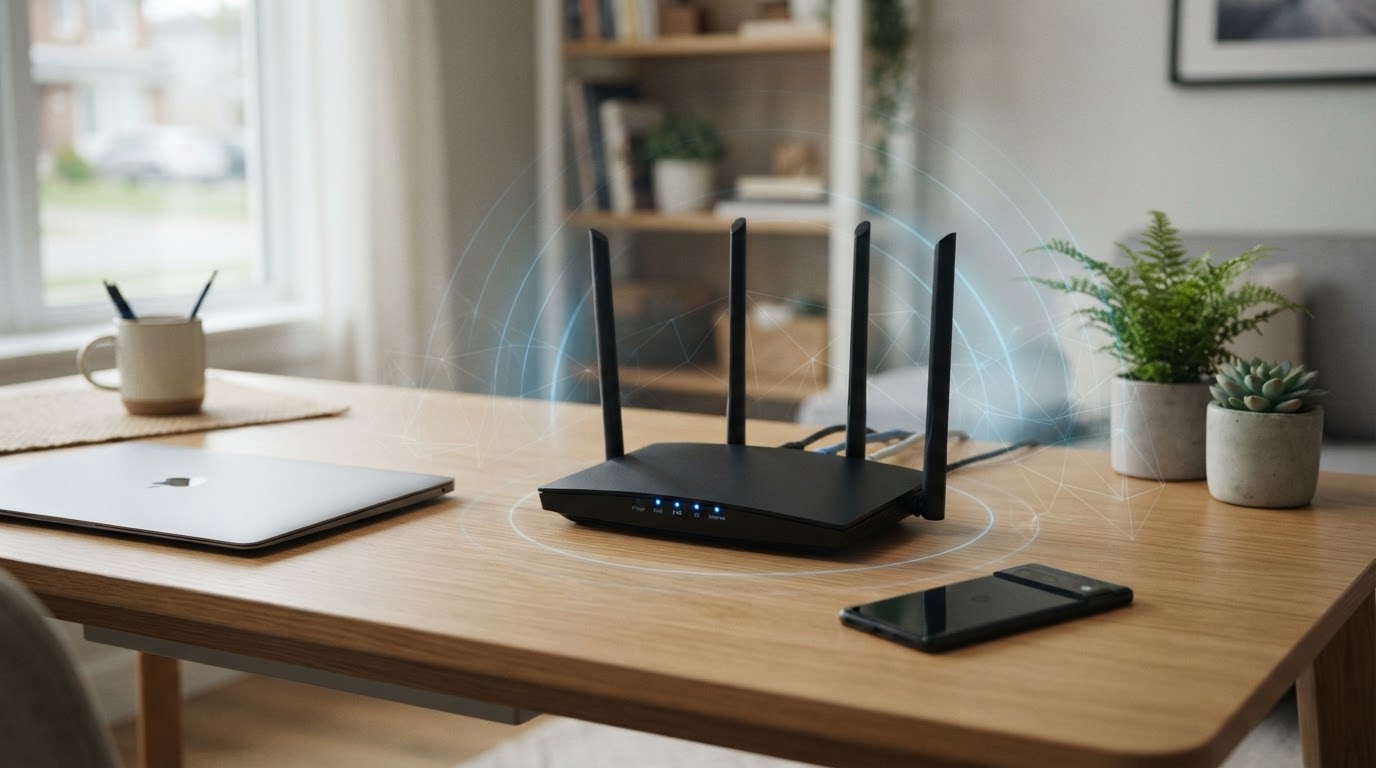
Your router connects almost every device in your home to the internet. If it still uses factory passwords, outdated encryption or old firmware, one weak setting can put the network at risk. A few checks can improve protection without replacing all your devices.
1. Change the router administrator password
Start with the password used to open the router’s administration page or app. This is different from the Wi-Fi password that family members enter on their phones. Factory administrator credentials are often printed on the device or documented online, which makes them a poor long-term defence.
Sign in through the router’s app or administration address and find the administrator or system password setting. Replace the default with a unique, long password and save it in a password manager. If your provider manages the router, follow its instructions before changing settings.
2. Use WPA3 or WPA2 encryption
Look for a setting called Wireless Security, Wi-Fi Security or Authentication. Choose WPA3-Personal if your router and devices support it. If some older devices cannot connect, WPA2/WPA3 transition mode can allow newer devices to use WPA3 while older ones continue using WPA2. If WPA3 is unavailable, WPA2-Personal with AES is a reasonable fallback.
Avoid WEP and the original WPA standard. They are obsolete and should not be used to protect a modern home network. The Federal Trade Commission’s guide to securing a home Wi-Fi network explains why WPA3 is preferred and why WPA2 remains a better option than legacy encryption. Apple also documents the Wi-Fi security protocols supported by its devices, which can help when checking compatibility.
3. Install router firmware updates
Router firmware is the software that controls the device. Manufacturers release updates to fix bugs, improve stability and close security vulnerabilities. Sign in to the router’s app or administration page and look for Firmware Update, Router Update or System Update. Install updates from the manufacturer or your internet provider, not from third-party download sites.
If automatic updates are available, enable them. Some provider-supplied routers update themselves, while others require the customer to approve an update. If the manufacturer no longer provides security updates for an old router, replacing it is safer than leaving it connected indefinitely.
4. Replace default network details
Change the Wi-Fi password if it is still the factory default or has been shared widely. Use a long, unique passphrase that is difficult to guess. You can also change the network name, known as the SSID, to something that does not reveal your name, address or router model. Hiding the SSID is not a meaningful substitute for encryption and a strong password.
5. Create a guest network for visitors and smart devices
Most modern routers let you create a separate guest Wi-Fi network with its own password. Give visitors that password instead of sharing the one used by your computers and phones. If the router supports client isolation, enable it so guest devices cannot easily communicate with one another or access devices on the main network.
If supported, place smart-home devices and cameras on a separate network too. This can limit their access to personal computers and storage, although the exact isolation features vary by router.
6. Turn off remote access and features you do not use
Review settings for remote administration, WPS and UPnP. Remote administration lets someone manage the router from outside your home, so disable it unless you have a specific need and understand how it is protected. WPS can make joining a network easier, but turning it off removes an additional route into the router. UPnP helps devices and games configure connections automatically; disable it if you do not rely on it, but be aware that some applications may stop working as expected.
7. Check connected devices and the firewall
Review the connected-device list. Phones, TVs and speakers may appear under unfamiliar manufacturer names, so check before blocking anything. If you suspect an unknown person has joined, change the Wi-Fi password.
Finally, make sure the router’s built-in firewall is enabled. The FTC recommends checking this setting, keeping router software current and using a guest network where possible. CISA’s home-network security guidance also recommends strong passwords, modern wireless encryption and disabling legacy protocols such as WEP and WPA.
Conclusion
Securing home Wi-Fi is less about finding one perfect setting and more about removing easy ways into the network. Change both default passwords, use WPA3 or WPA2, keep firmware updated, separate visitors and smart devices where possible, and turn off remote features you do not need. Router menus vary by manufacturer, but these checks apply to most home networks. If your router cannot use modern encryption or no longer receives security updates, upgrading the hardware is the most sensible long-term fix.